Follow these 5 steps to create your THOR Neuromorphic Commons account, complete your researcher profile,
apply for SpiNNaker 2 hardware access, install the thor-bifrost client, and run your first remote SNN workload.
1. Creating Your Account & Setting Up 2FA
All THOR portal, forum, and hardware access features share a single account protected by mandatory
Two-Factor Authentication (RFC 6238 TOTP).
Register your account: Go to the Registration page and enter your
full name, email address, and a strong password (minimum 8 characters).
Confirm your email address: Immediately after registering, THOR sends a verification email to
your inbox. You must click the verification link in that email before you can proceed to 2FA setup.
Note: Check your spam or junk folder if you do not see the email within a couple of minutes.
The verification link expires after 24 hours.
Set up Two-Factor Authentication (2FA): Clicking the verification link will take you directly
to the mandatory 2FA enrollment screen.
Open an authenticator app on your phone or password manager — such as Duo Mobile,
Google Authenticator, Microsoft Authenticator, 1Password,
Apple Keychain, or Aegis.
Scan the QR code displayed on screen (or copy and paste the manual secret key if you cannot scan).
Enter the 6-digit verification code generated by your authenticator app to activate 2FA.
Save your recovery codes: After verifying your 6-digit code, download or copy your
one-time emergency recovery codes and store them somewhere safe. You will need them if you ever lose access
to your authenticator device.
2. Setting Up Your User Profile
Once signed in, open Profile & Publications in the user portal to complete
your public researcher profile.
Important: Your account bio, institutional affiliations, and profile details are reviewed by
THOR administrators to evaluate and approve your hardware access request. Please complete this section before
applying for SpiNNaker 2 access.
Bio, Title & Research Interests: Add your current role/title (e.g., PhD Student,
Research Scientist, Professor), a concise research bio, and relevant neuromorphic or SNN research tags.
Affiliations: Add your university, research lab, or organization under
Affiliations, including your department and position title.
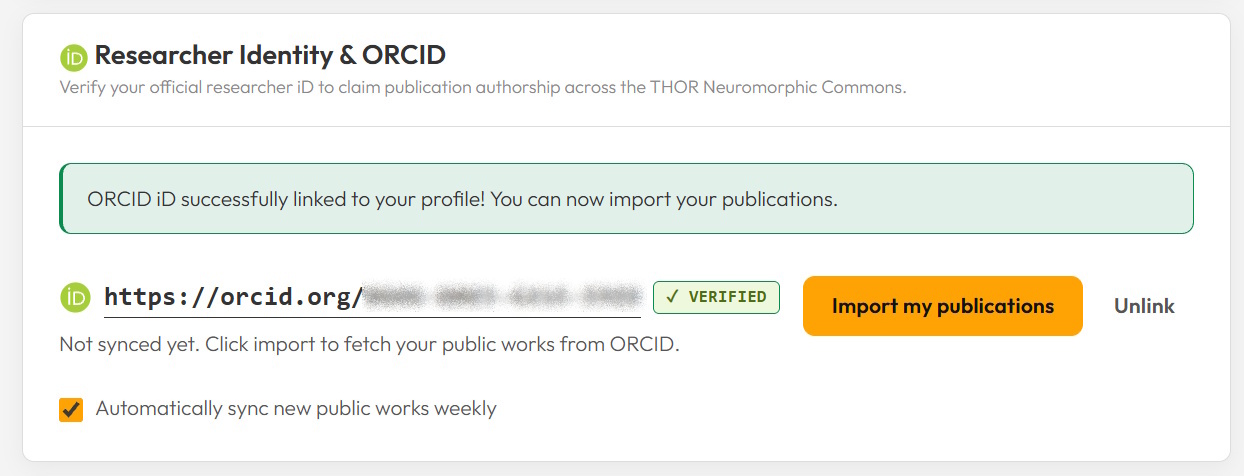
Connect your ORCID iD: Click Connect ORCID iD to sign in with ORCID and
attach your verified 16-digit identifier. Once linked, THOR automatically imports your public works into
the Research & Publications section of your public profile.
Verified ORCID iD linked in the Profile & Publications portal.
External Links: Optionally add your Google Scholar, GitHub, LinkedIn, DBLP, or personal
website URLs.
3. Applying for Hardware Access
Access to THOR neuromorphic hardware is granted per platform after manual review by THOR administrators.
Open Hardware & Tokens: In the portal sidebar, navigate to
Hardware & Tokens.
Complete the Access Application:
Select SpiNNaker 2 (54-Board Digital Fabric) as your target platform.
Enter your Institution or Organization.
Write your Research Goals & Statement of Work (at least 20 characters) describing
your neuromorphic model, research aims, and software stack.
Compute Units / Boards: Temporarily restricted to 1 board/compute unit
during this initial phase.
Submit & Wait for Approval: Click Submit Platform Access Application.
Your application status will show as PENDING until an administrator reviews your profile and
research statement.
Wait for Authorization Approval: Do not run thor-client init yet.
Wait until your Hardware & Tokens page shows AUTHORIZED (approved) before initializing your
local client device.
4. Installing & Setting Up THOR-Bifrost
Use py-spinnaker2 to build your neural network and the THOR-Bifrost Client to
run it on remote SpiNNaker 2 hardware.
Step 1: OS Requirements & Environment Setup
Supported environments are limited to platforms with a stable py-spinnaker2v0.8.4
installation — currently any Ubuntu system with GLIBC v2.39+ (e.g., Ubuntu 24.04+).
Linux: Native Ubuntu with GLIBC v2.39+ (check with ldd --version).
Windows: Use WSL2 (Ubuntu 24.04+) or Docker.
macOS: Use Docker.
Ensure your THOR website account has approved SpiNNaker 2 access before initializing.
docker run -it --mount type=bind,src="$(pwd)",dst=/workspace spinnaker2/py-spinnaker2:0.8.4
Once inside the container, skip Step 2 (py-spinnaker2 is already installed) and proceed directly to Step 3 to download and install the THOR-Bifrost Client wheel.
Option B: Conda Environment (Ubuntu / WSL2)
Install Miniconda if conda is not available, reopen your terminal, and create the environment:
The repository is named py-spinnaker2, but the Python package is imported as spinnaker2.
This guide pins v0.8.4 as recorded in THOR's compatibility evidence.
Step 3: Download & Install the THOR-Bifrost Client Wheel
Download the Client Wheel:
Download thor_bifrost-0.10.1-py3-none-any.whl from
THOR Bifrost Client Password:THOR-BIFROST
Replace the path below with the location of your downloaded wheel:
The wheel installs the client's transport dependencies. You do not need the server wheel, and do not install the unrelated PyPI package named thor.
Step 4: Check the Installation
python -m pip check
python -c "from spinnaker2 import snn; from thor.backends.spinnaker2 import RemoteBackend as Spin2; print('Imports OK')"
Both commands should report no broken requirements and print Imports OK.
Step 5: Connect Your Account (Web-Based Token Initialization)
thor-client init
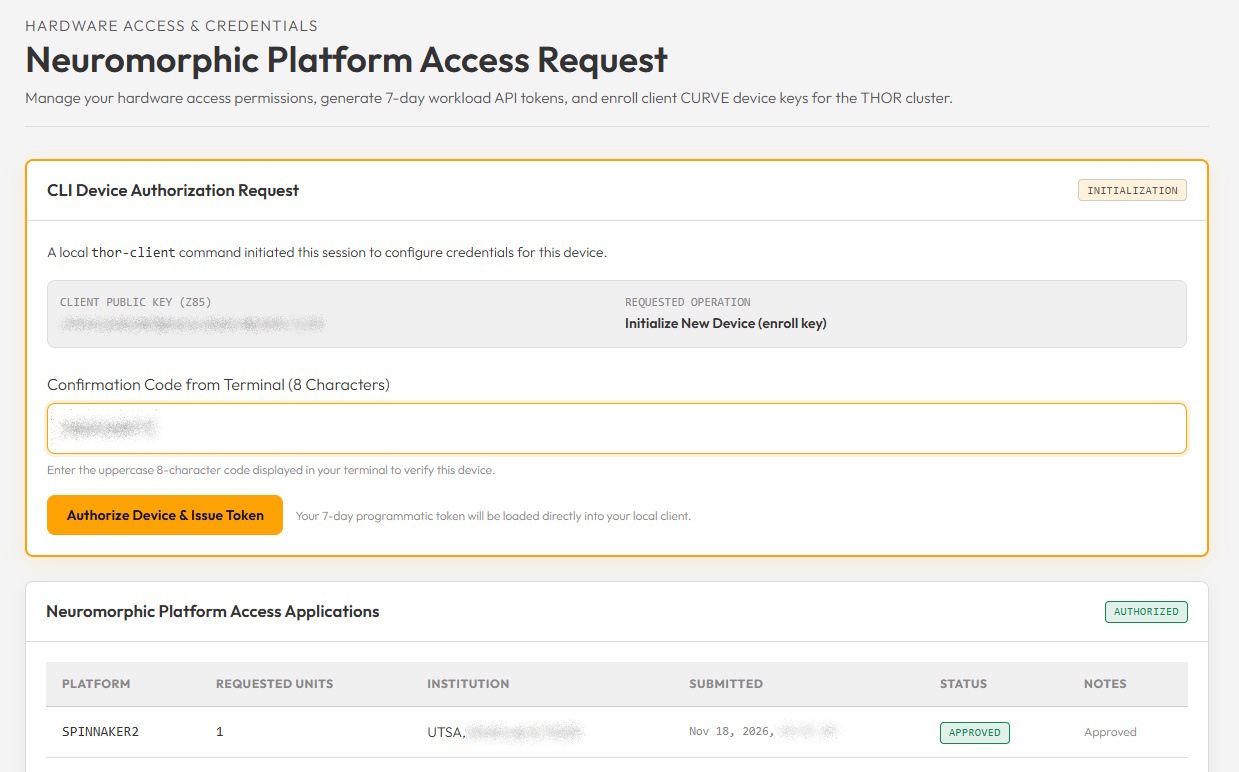
thor-client init generates your local CurveZMQ keypair, prints a confirmation code and URL in your
terminal, and opens your browser to the THOR portal.
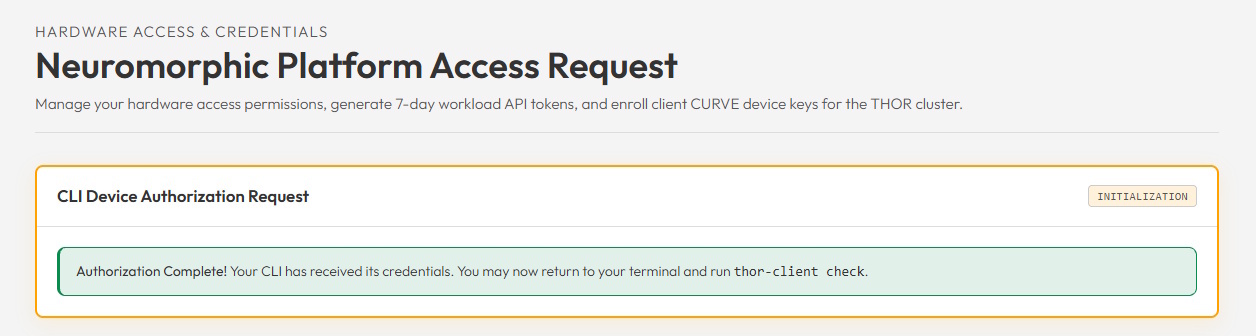
1. Terminal prints your confirmation code and authorization link.2. Sign in with 2FA, enter the confirmation code on Hardware & Tokens, and click Authorize Device & Issue Token.3. Browser confirms your CLI device is authorized.4. Terminal saves your connection settings and token locally.
Then verify authenticated connectivity without submitting a hardware workload:
thor-client check
5. Running Examples & Renewing Your API Token
Porting Examples from py-spinnaker2 to THOR
You build networks using standard spinnaker2.snn classes (Population,
Network, Projection), and only change two things to run on THOR:
Import the THOR backend:
from thor.backends.spinnaker2 import RemoteBackend as Spin2
Encapsulate hw.run from any py-spinnaker2 example:
with Spin2(config=args.config) as hw:
    result = hw.run(network, 50, timeout=180)
Run a SpiNNaker 2 network using the asyncio client.
Note: Streaming and async examples are only available for accounts approved for
data streaming access in the Hardware & Tokens portal.
import argparse
import asyncio
import json
from pathlib import Path

from thor.backends.spinnaker2 import AsyncRemoteBackend as Spin2Async
if __package__:
    from .spinnaker2_batch import build
else:
    from spinnaker2_batch import build


async def run(config):
    value = json.loads(config.expanduser().read_text())
    connection = {key: value[key] for key in ('endpoint', 'api_key', 'server_public_key')}
    if 'client_key_file' in value:
        connection['client_key_file'] = str(Path(value['client_key_file']).expanduser())
    else:
        connection['client_keys'] = (value['client_public_key'], value['client_secret_key'])
    network, population = build()
    async with Spin2Async(**connection) as backend:
        result = await backend.run(network, 50, timeout=180)
    print(f'synthetic={result.synthetic}; spikes={population.get_spikes()}')
    print('Voltages:', population.get_voltages())


def main():
    parser = argparse.ArgumentParser(description=__doc__)
    parser.add_argument('--config', type=Path, default=Path.home() / '.config/thor-bifrost/client.json')
    args = parser.parse_args()
    asyncio.run(run(args.config))


if __name__ == '__main__':
    main()
3. Job Submission & Status Polling (spinnaker2_job_status.py)
Submit a SpiNNaker 2 job asynchronously and inspect its status and results.
import argparse

from thor.backends.spinnaker2 import RemoteBackend as Spin2
if __package__:
    from .spinnaker2_batch import build
else:
    from spinnaker2_batch import build


def main():
    parser = argparse.ArgumentParser(description=__doc__)
    parser.add_argument('--config', help='client JSON; default ~/.config/thor-bifrost/client.json')
    args = parser.parse_args()
    network, population = build()
    with Spin2(config=args.config) as backend:
        job = backend.submit(network, 50)
        print('Job:', job.job_id)
        print('Initial state:', job.status()['state'])
        print('Final state:', job.wait(timeout=180)['state'])
        result = job.result()
    print(f'synthetic={result.synthetic}; spikes={population.get_spikes()}')
    print('Voltages:', population.get_voltages())


if __name__ == '__main__':
    main()
4. Live Spike Streaming (spinnaker2_streaming.py)
Stream a SpiNNaker 2 network to a local callback over THOR.
Note: Live spike streaming is only available for accounts approved for
data streaming access in the Hardware & Tokens portal.
import argparse
from thor.backends.spinnaker2 import RemoteBackend as Spin2


class EventSource:
    def __init__(self):
        self.t = 0

    def next(self):
        t, self.t = self.t, self.t + 1
        return [0] if t in (1,4,9,11) else [1] if t in (20,30) else []


def build(callback):
    from spinnaker2 import snn
    stim = snn.Population(2,'spike_replicator',{'spike_source':EventSource()},name='stim')
    pop = snn.Population(1,'lif',{'threshold':10.,'alpha_decay':.9,'i_offset':0.,
        'v_init':0.,'v_reset':0.,'reset':'reset_by_subtraction'},name='observed',record=[])
    gas = snn.Population(1,'gather_and_stream',{'callback':callback,'timewindow':1,'sample_only':False},name='gas')
    net = snn.Network('tiny-stream')
    net.add(stim,pop,gas,snn.Projection(stim,pop,[[0,0,4,1],[1,0,-3,2]]),snn.Projection(pop,gas,[[0,0,0,0]]))
    return net


if __name__ == '__main__':
    parser = argparse.ArgumentParser(description=__doc__)
    parser.add_argument('--config', help='client JSON; default ~/.config/thor-bifrost/client.json')
    args = parser.parse_args()
    net = build(lambda spikes: print(spikes,flush=True))
    with Spin2(config=args.config) as hw:
        result = hw.run(net,200,timeout=180)
    print({'synthetic':result.synthetic,'job_id':result.job_id,'stream':result.stream_counters})
Renewing Your API Token with thor-client
Workload tokens are valid for 7 days. When your token expires (or before a long batch of runs),
renew it from your terminal while your workloads are idle:
thor-client renew
Run thor-client renew in your activated spin2 conda environment.
Complete the browser confirmation on Hardware & Tokens (enter the printed confirmation code and authorize).